
TNREGINET Login: Portal Sign In and Access Fixes
Use TNREGINET login only when the account already exists and the real job is signing in cleanly. Start with the .gov.in portal, then work out whether the blocker is the password, captcha, OTP, or the session itself before you retry.
Stay here for sign-in access, login-only fixes, and the split between account access and account creation. This page does not replace public record lookup, language-only guidance, or broader portal troubleshooting once login is no longer the real blocker.
Use the .gov.in portal before entering login details.
Keep username, password, captcha, and OTP access ready if asked.
Use login for saved requests, status checks, and forms tied to your account.
The login form only helps when the account already exists. Come here for sign-in trouble, password recovery, captcha failure, OTP delay, or getting back into a protected service. If the account does not exist yet, move to registration instead.
Page scope
Stay here for sign-in and access problems. Move to registration only when you still need to create the account.
TNREGINET Portal Login Access
Before you type anything, make sure you are on the government site. Search results can show explainer pages and unofficial copies. Your username and password belong only on the .gov.in portal.
Where to find the TNREGINET portal login page
Open https://tnreginet.gov.in/portal/ and look for the user login or sign-in option. The label may shift a little across portal updates or language views, but the address should stay inside tnreginet.gov.in.
The government sign-in path stays the same whether you begin from the main portal, a saved bookmark, or a service that sends you there. Start from tnreginet.gov.in and use the login option shown inside that portal.
If a service sends you to login from inside the portal, use that prompt instead of hunting for another sign-in page. That keeps you on the correct domain and avoids copycat URLs.
Open the portal
Start from tnreginet.gov.in, not from a copied or shortened login link.
Find the sign-in option
Use the login or user sign-in option shown inside the government portal itself.
Continue to your service
After login, open the dashboard or go back to the service that asked for your account.
Use this quick route
- open the TNREGINET portal
- confirm the address uses
tnreginet.gov.in - find the login or user sign-in option
- enter your username, password, and captcha only on the government portal
- continue to the dashboard or the service page that asked for login
What users should check before signing in
Make three quick checks before signing in: the address ends in .gov.in, the page has loaded properly, and you are using the right username and password. That alone prevents many wasted attempts.
Keep your password ready, read the captcha carefully, and use the phone number or email already linked with the account if an OTP appears. If the form fails once, do not hammer the submit button. Stop, recheck the fields, and try again cleanly.
Safer access checklist
- do not enter TNREGINET login details on non-government pages
- avoid signing in from public or shared devices when possible
- use a stable internet connection before submitting the form
- refresh the captcha only if it is unreadable
- log out after finishing account-based work
Who Needs TNREGINET Login and What It Unlocks
Not every TNREGINET task starts with login. Many users only need service information, a public lookup page, or the right portal section. Login matters when the site needs to know who you are and save something under your account.
Services that need login on the portal
Use login when the portal has to tie the task to your account. That means saved requests, tracked applications, user-specific results, or protected forms that should not open for a public visitor.
Saved requests
Use login when a service must save your details or resume a request under your name.
Request tracking
Sign-in is needed when the portal has to show status, history, or other results tied to your account.
Protected features
Some services open only after registration and successful sign-in.
You need login for jobs like these:
- continuing a saved request
- submitting details that must be connected to your user account
- checking the progress of a request or application
- using services that return user-specific results
- opening protected features after registration
Login and registration are different
Registration creates the account. Login opens it. If you still do not have TNREGINET credentials, stop using the sign-in form and go to registration first.
When TNREGINET login is not required yet
You can stay outside the account when you only want service information, a public search tool, or the correct department path. In those cases, open the service first and sign in only if the portal stops you and asks for it.
That is faster than forcing login at the start. If the task really needs your account, the portal will push you to sign in at the right point.
EC view first
If the real job is a public property-history check, start with EC view before forcing login.
Guideline value first
If you only need location-based value reference, start with guideline value and sign in later only if the portal asks.
Patta or FMB route first
If the confusion is about land-record routing, Patta, or FMB, solve that route first instead of starting with the TNREGINET login screen.
Simple login rule
If TNREGINET must identify you, save your request, or show account-only details, login is required. If you are only reading, checking, or starting a public search, you may not need it yet.
How to Sign In to TNREGINET Step by Step
The sign-in process is short. Most failed attempts happen because one field is rushed, the captcha expires, or the user is on the wrong screen.
Entering username, password, and captcha correctly
Start from the user login option on the portal. Enter the username linked to your account, type the password carefully, and copy the captcha exactly as it appears. If the captcha looks messy, refresh it before you submit.
Username
Use the username already tied to your TNREGINET account. Check spelling before you submit.
Password
Type the password slowly and watch for extra spaces if you pasted it from somewhere else.
Captcha or OTP
Enter the captcha exactly as shown and finish the OTP step if the portal asks for one.
Basic sign-in order
- open the TNREGINET portal
- choose the login or user sign-in option
- enter your username in the correct field
- type your password without extra spaces
- enter the captcha exactly as displayed
- complete OTP or verification if the portal asks for it
- submit the form once and wait for the response
If the form does not move right away, wait a moment. Repeated clicks can create more confusion, especially if the captcha or session has already expired.
What users should expect after successful login
After a successful login, you may land on the dashboard or go straight back to the service that asked for your account. Both are normal.
Once you are in, make sure you are on the right service before entering more details. If the wrong screen opens, use the portal menu instead of the browser back button, because going back can break the session or bring back an old captcha.
TNREGINET Login Problems and Fast Fixes
Most login failures come from small things: one wrong character, an old OTP, an expired captcha, or a stale browser session. Check those first before you assume the account has a bigger problem.
Wrong password, OTP, and captcha issues
If the password fails, check the username, spelling, and keyboard settings before you jump to recovery. If you pasted the password, make sure no extra space came with it. If careful attempts still fail, use the forgot-password option on the portal instead of making a second account.
OTP trouble can mean the registered number or email is not within reach, the message is delayed, or too many codes were requested too quickly. Wait a little before asking for another one, and make sure you are using the newest code.
Captcha errors are common when the letters are hard to read or the session sits open too long. Refresh the image if needed, type only the visible characters, and submit soon after entering them.
Fast checks before support
- retype the username and password instead of copying old text
- refresh an unclear captcha before submitting the form
- wait briefly before requesting another OTP
- try a fresh browser session if the page has been open for a long time
Portal not opening or login page not loading
If the login screen does not open, first make sure you are using the right address. Then try a fresh tab, another browser, or a new session. The site can slow down during busy periods, so a short wait can help more than repeated refreshes.
If the page opens but nothing happens after submit, look at the easy causes first: expired captcha, timed-out session, or one missed field.
When to reset credentials and when to contact support
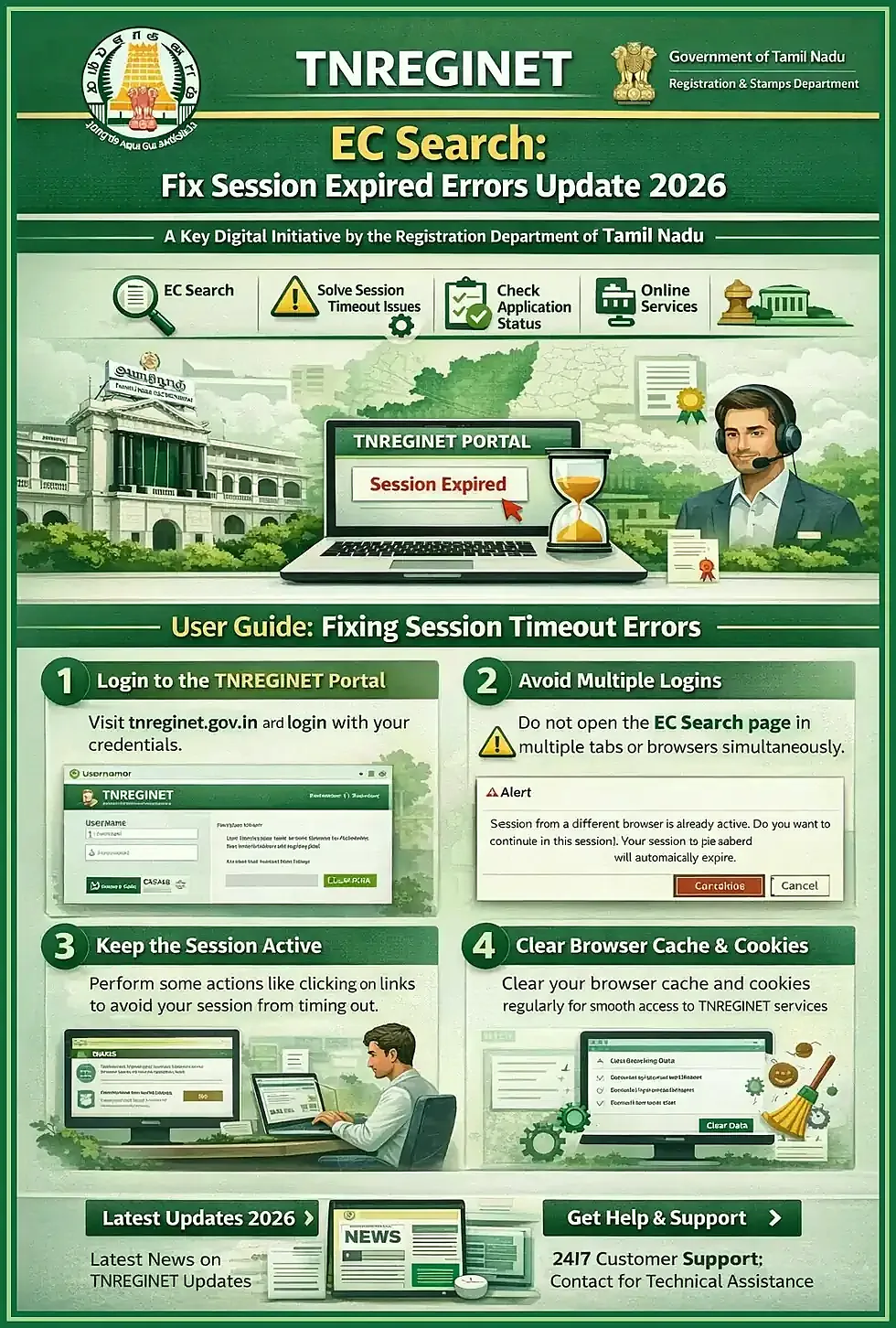
Reset credentials when
Use reset only when the password is actually forgotten or repeated careful attempts still fail because the credentials do not match.
Contact support when
Move to support when recovery fails, OTP never arrives after careful retry, or the same problem follows you across browsers and sessions.
Do not reset the password just because the site is slow or one captcha failed. If the problem is tied to a service record, application status, or office-level verification, support or Sub-Registrar Office follow-up may be the better next move.
TNREGINET Login in English or Tamil
Switching between English and Tamil changes the labels on the screen. It does not change your account, password, captcha, or sign-in rights. The account path stays the same in both views.
How language settings affect sign-in navigation
The main difference is navigation. In English, you may look for words like login, user login, or sign in. In Tamil, the same path may appear under Tamil labels. The account behind it is still the same.
English view
Helpful when you want clearer labels for username, password, captcha, dashboard, and service names.
Tamil view
Helpful when Tamil labels are easier for the person reading the screen or filling the form.
Same account access
Changing language should not change your credentials or the service you are trying to open.
If English labels are easier for you, switch early and sign in there. If Tamil is easier, do the same in Tamil. The steps stay the same either way.
What changes is the wording on the buttons and menus, not the login itself.
When users should switch to the language-access page
Open the dedicated language-access guide if your real problem is not the password or OTP, but the labels on the portal. That is the better fix when you cannot find the sign-in button or the page feels mixed and confusing.
When language help is the better next step
- you cannot identify the login or user sign-in label
- you are unsure whether the portal is asking for login or registration
- the page shows mixed English and Tamil labels that slow you down
- you are helping someone who reads the other language more comfortably
This also helps when one person is filling the form for another family member. Choosing the clearer language first can prevent simple mistakes before any account details are entered.
What to Do If You Do Not Have an Account Yet
If you do not have TNREGINET credentials yet, stop at the login screen and go to TNREGINET registration first. The sign-in form cannot create the account for you.
When users should go to TNREGINET registration instead of login
Choose registration when you have never opened an account, you do not have a username yet, or the site rejects your details because no account exists under them. Repeating the login form will not change that.
Use registration when
- you are a first-time TNREGINET user
- you do not have a username or password
- the service says account access is required before continuing
- you need a personal account for tracked requests or protected services
- you are helping a new applicant start a protected service request
New user
Create the account first, then come back to login with the username and password you set.
Existing user
Do not register again right away if the account already exists. Check password, captcha, OTP, or username problems first.
After registration, return to login and use the new credentials. If the account already exists but you still cannot enter, check password, captcha, OTP, or username issues first. If the portal itself stays unstable or the same failure follows you across sessions, move to the TNREGINET not working guide instead of creating duplicate account details.
TNREGINET Login FAQ
Short answers to common sign-in questions
No. Some TNREGINET services open without sign-in. Login is needed when the portal must save your request, show your status, or open a protected form tied to your account.
Use the forgot-password or recovery option on the portal. Keep the registered mobile number, email, or username ready, and do not open a new account unless recovery really fails.
Captcha fails when the letters are misread, the image is unclear, the session expires, or the form sits open too long. Refresh it if needed and submit soon after typing it.
Final Takeaway and Best Next Step
When to log in, register, or move to support
Use login when the account already exists and the service asks for it. Use registration when you still need to create the account. Move to support only after the normal checks fail.
Match the action to the problem
- log in if you already have a username and password
- register first if you have never created a TNREGINET account
- retry carefully if the issue is captcha, OTP delay, or a temporary loading problem
- use password recovery if you cannot remember your credentials
- move to support if the same account or portal issue continues after careful retry
Start from the portal, confirm the .gov.in address, and sign in only when the service asks for your account. That avoids bad links, repeated attempts, and duplicate registrations.