
TNREGINET EC View: View EC Online and Check Encumbrance
Use TNREGINET EC view when the real job is to view EC online in Tamil Nadu and check encumbrance history, not download a certified record or solve a broader portal issue. Keep the property inputs ready, because one wrong SRO, village, survey detail, or date range can change the result.
Stay here for EC search steps, result reading, and the split between quick online view and formal proof. This page does not replace certified-copy help, guideline value planning, or broader support follow-up once EC view is no longer the real blocker.
Online lookup for Encumbrance Certificate-related property records.
District, SRO, village, survey number, document number, and date range matter.
EC is useful, but important property decisions still need deeper review.
An EC search only works well when the property and office details are accurate. Choose the right search path, enter the fields carefully, and treat the result as a registration-history check, not as instant proof that every legal issue is clear.
Page scope
- stay here for EC search steps, field accuracy, and Nil Encumbrance meaning
- move to certified-copy help when a bank, buyer, or office needs formal proof
- move to support or SRO follow-up when careful rechecking still does not fix the result
What EC View Means and Why It Matters
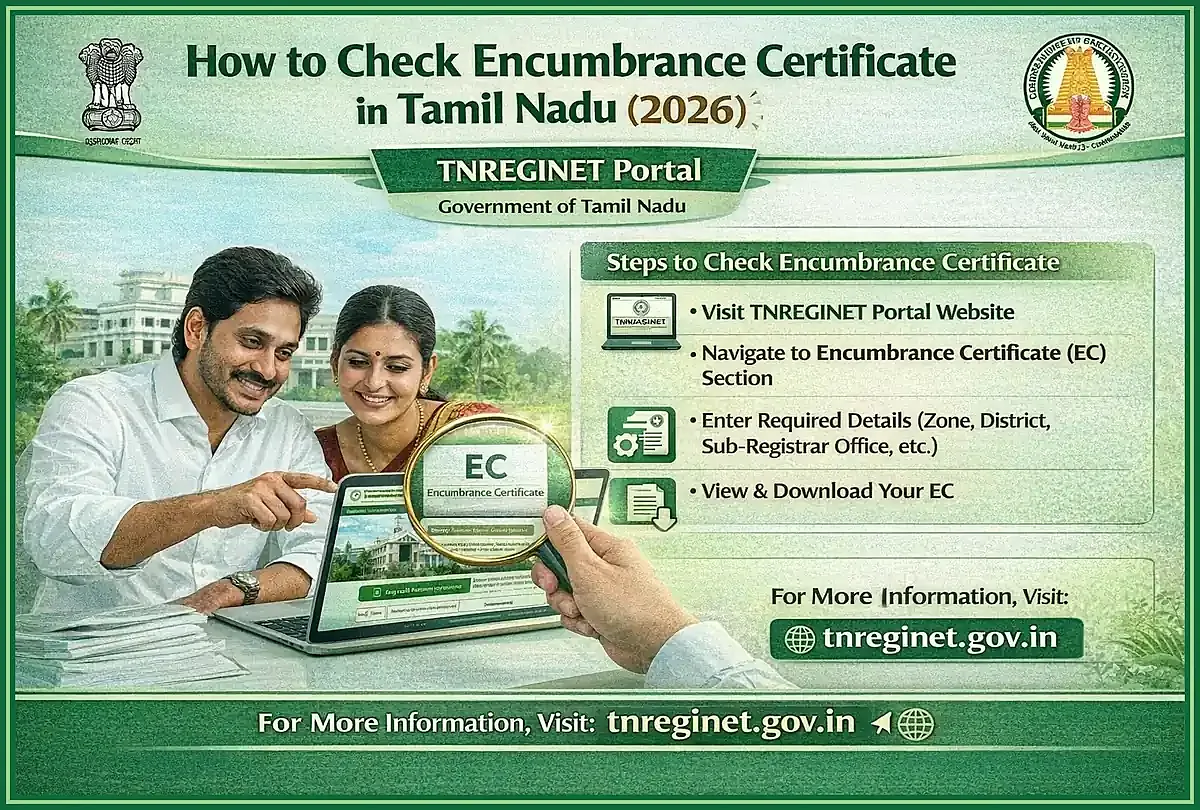
EC view means checking what registered entries appear against a property for the dates you choose. It is one of the quickest ways to see whether sale, mortgage, settlement, release, or similar records show up in the registration trail.
That is why buyers, owners, banks, and document reviewers use it early. It gives a useful starting point, but it is still only one part of property verification.
What an Encumbrance Certificate shows for a property
An Encumbrance Certificate shows the registered transaction trail for the property during the period you search. Depending on the record and the fields you enter, it may show sale, mortgage, release, settlement, gift, partition, or another registered document entry.
Put simply, it answers one practical question: what registered activity appears for this property in this date range? If entries appear, read them against your documents. If nothing appears, the result may show Nil Encumbrance or an empty record, and that still needs interpretation.
Registered transactions
EC can show recorded sale, mortgage, release, settlement, or similar registered activity.
Selected period
The result depends on the date range searched, not all history by default.
Search accuracy
District, SRO, village, survey number, and document details affect the result.
Search details matter
The result depends on the search details. District, Sub-Registrar Office, village, survey number, document number, and date range can all change what appears. One wrong field can make the record look empty or incomplete.
When buyers, owners, and banks ask for EC
Buyers check EC before purchase because they want to know whether the registration history matches what they were told. That helps before paying advance money, signing anything, or moving closer to registration.
Owners use EC before a sale, during loan work, while tracing older documents, or when they want to confirm what the registration record actually shows. Banks ask for the same reason. They want the record trail, not only the seller’s explanation.
EC still does not answer every legal question about a property. It supports due diligence, but serious decisions may still need title review, office clarification, or other records.
Use EC view when you need
- registered property transaction history
- a first-level check before purchase or loan processing
- record support before document review
- clarity about entries linked to a survey number or document number
- a starting point before certified copy or Sub-Registrar Office follow-up
Best use of EC view
Use EC view as an early check, not the last check. When the property decision matters, confirm the key details through certified records, office clarification, or legal review. For value planning, use the TNREGINET guideline value guide.
TNREGINET Path to View EC Online in Tamil Nadu
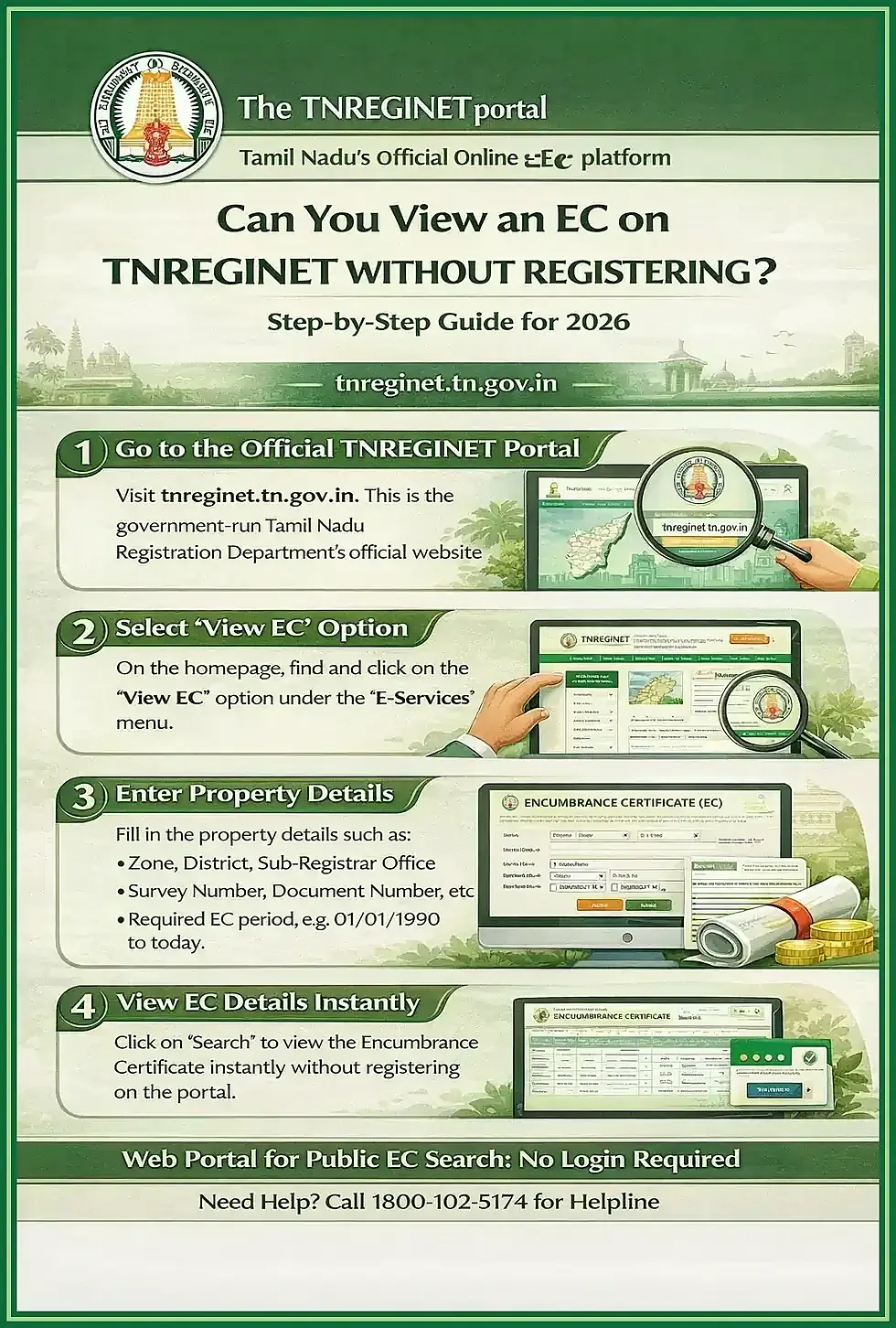
Start on the government domain. Search results for EC can mix in guide pages, app pages, and copied versions of the portal, so check that the address still shows tnreginet.gov.in before you enter property details.
Where users open the EC service on the portal
Open https://tnreginet.gov.in/portal/, then look for Encumbrance Certificate, EC view, or a similar e-service label. The wording may shift, but the EC search stays inside the same government domain.
This is still the same portal route. The important part is choosing the live EC service inside the government domain, not a copied shortcut from another site.
If the portal shows more than one service option, choose the EC option that matches the details you have. When the screen changes, glance at the address bar again before typing anything.
Start on the portal
Open EC from TNREGINET before entering property details.
Choose EC service
Look for Encumbrance Certificate, EC view, or related e-services wording.
Check the domain
Confirm the screen still belongs to tnreginet.gov.in before searching.
What users should keep ready before they search
EC search works much better when the property details are ready first. The portal may ask for district, Sub-Registrar Office, village, survey number, subdivision number, document number, and the period to be checked. The exact fields depend on the search type you choose.
Keep these details ready
- district connected with the property
- correct Sub-Registrar Office or SRO
- village or locality details
- survey number or subdivision number
- document number if searching document-wise
- date range or period to be checked
- old deed or property document details if available
Do not guess key fields
If you are unsure about the SRO, village, or survey details, verify them before searching. Guessing these fields can lead to no records, wrong results, or an EC output that does not match the property you intended to check.
How to Search EC on TNREGINET Step by Step
The form may look different from time to time, but the logic stays the same: choose the search type that matches your details, then fill every field carefully.
Survey-wise, document-wise, and other search paths
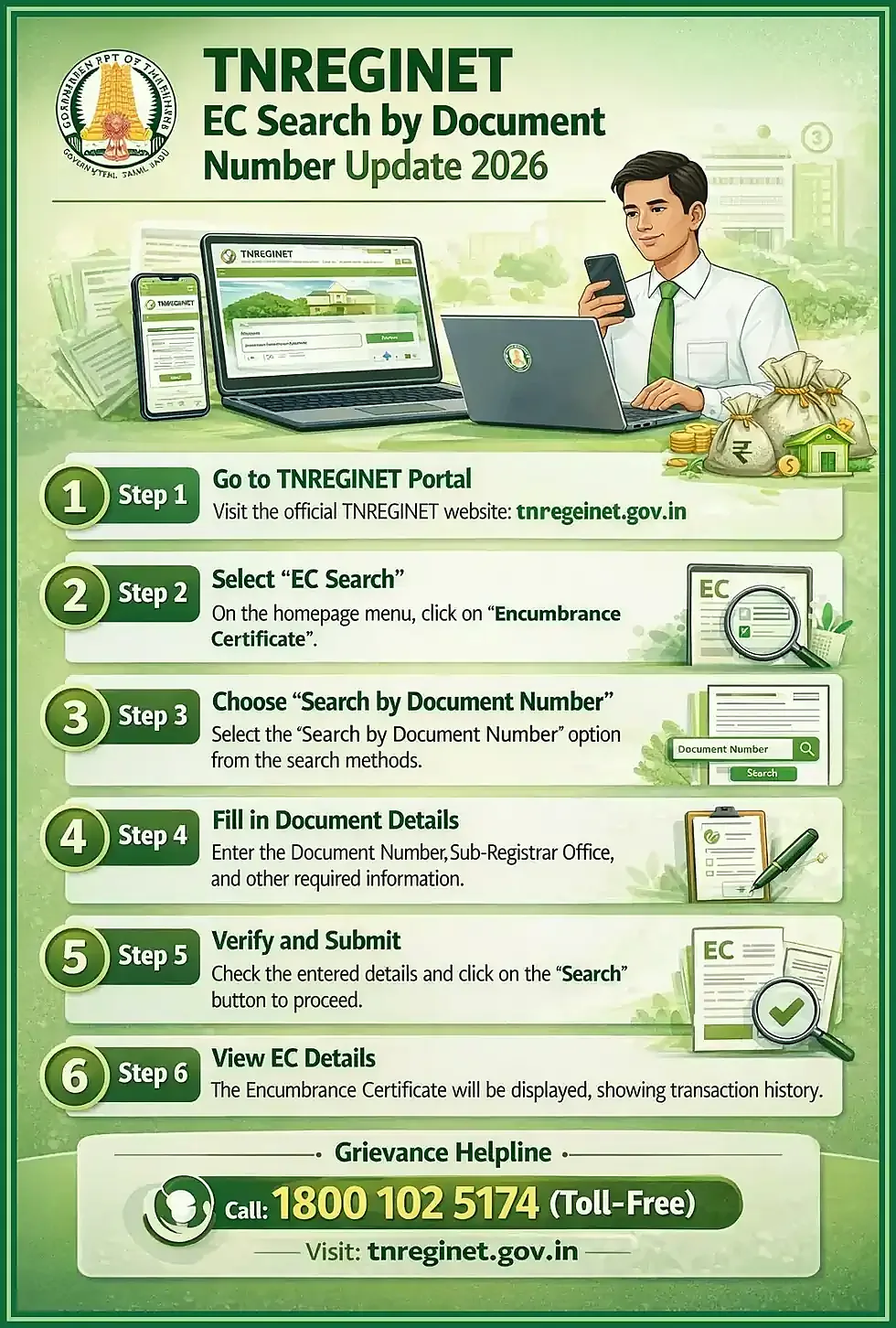
Use survey-wise search when you know the property location and survey details. That route depends on district, SRO, village, survey number, subdivision number, and date range.
Use document-wise search when you already have a registered document number or deed reference and want to search from that record instead.
Survey-wise search
Use when you have district, SRO, village, survey number, and subdivision details.
Document-wise search
Use when you have a registered document number or deed reference.
Other filters
Choose extra paths only when they match the details you actually have.
If the portal shows extra filters, pick the path that matches the details you actually have. Do not force document-wise search when all you know is the survey information, and do not force survey-wise search when the strongest detail is the document number.
Entering district, SRO, village, survey number, and date range correctly
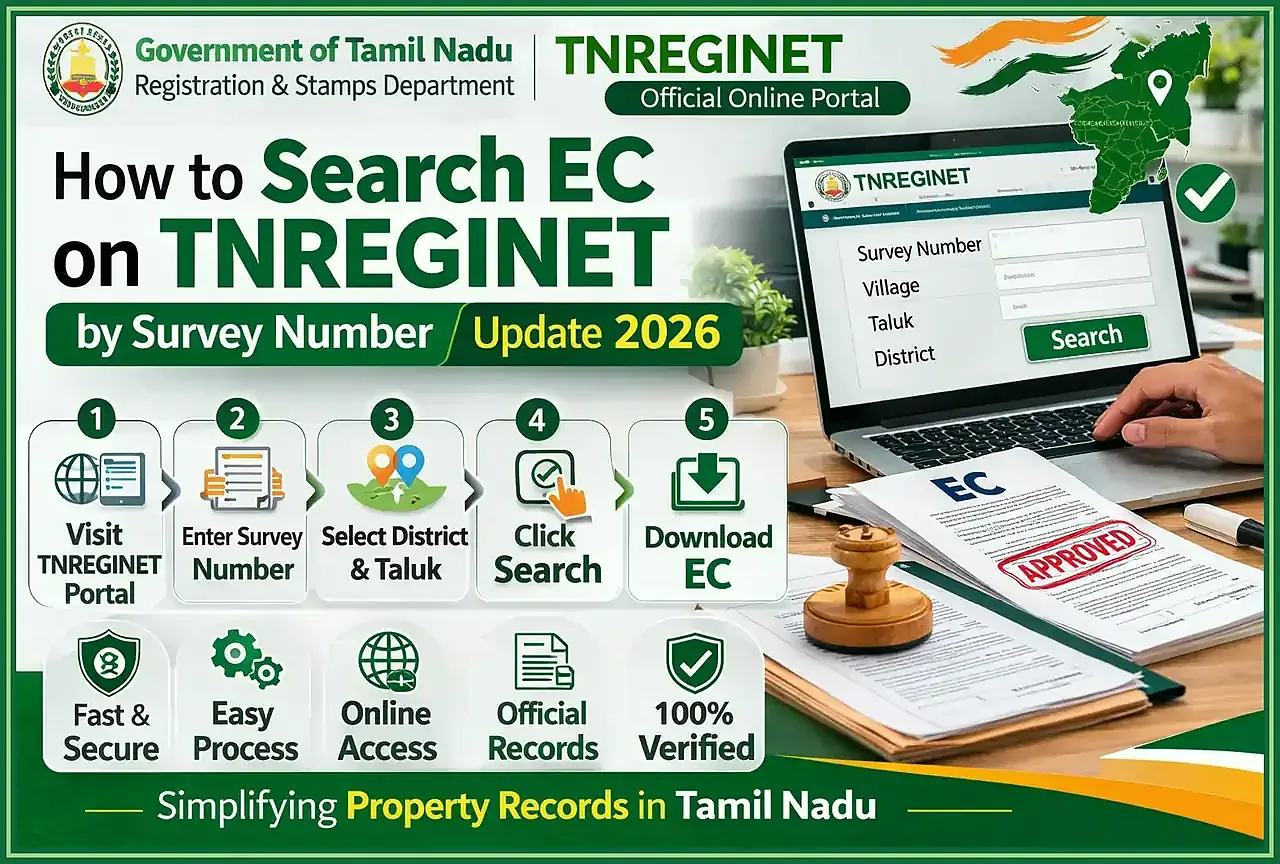
Enter the district and SRO carefully because those two fields decide which office records the portal will search. After that, choose the village or locality and enter the survey number or subdivision exactly as it appears in the property document.
The date range matters just as much. A short range can miss older transactions. A wider range may bring back more entries, but it also needs closer reading. For important property decisions, checking a longer period is the safer habit.
Basic EC search flow
- open the official EC service
- choose the correct search type
- select district and SRO
- choose village or locality
- enter survey number, subdivision, or document number
- set the date range
- submit the search and review the result carefully
Common field mistakes that cause wrong or empty results
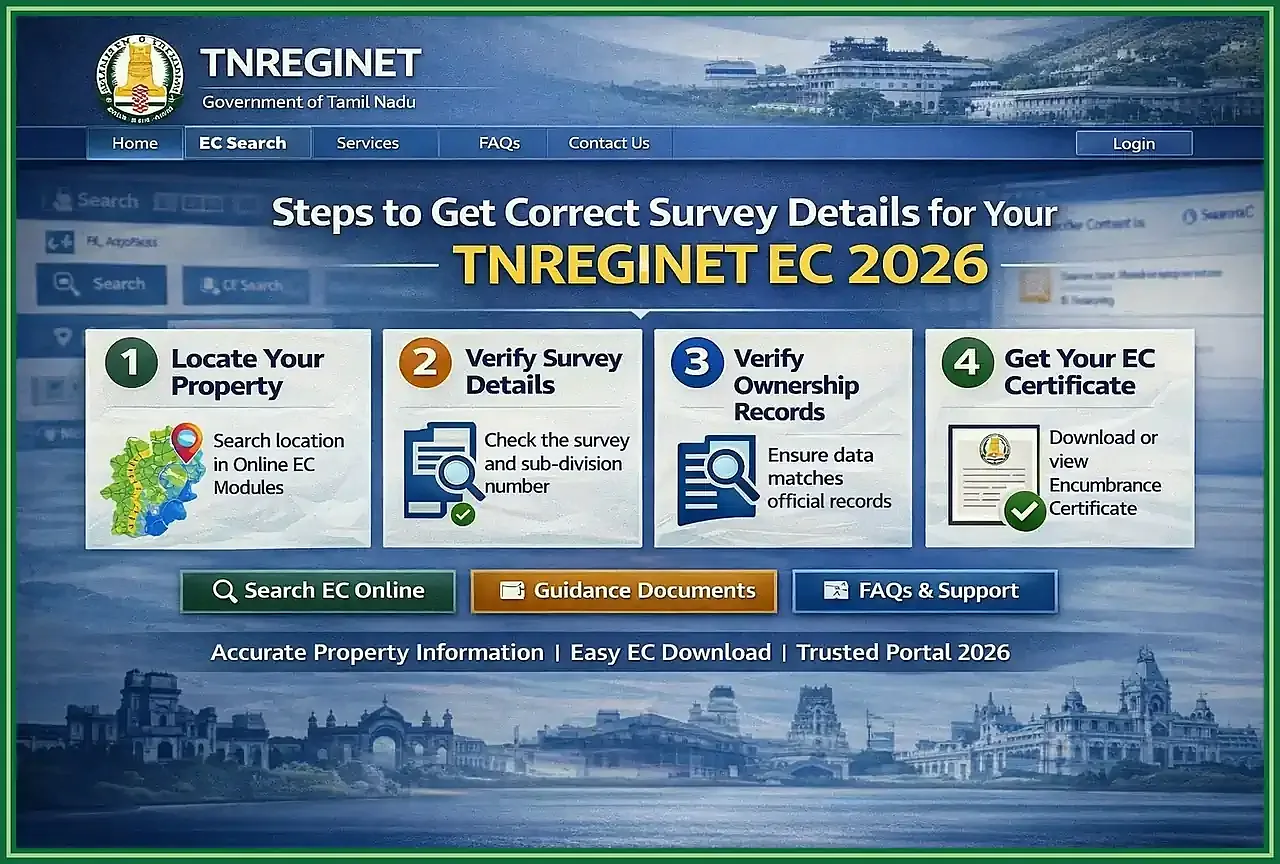
Wrong or empty EC results often come from small field mistakes. The portal can only search the record behind the details you enter, so one wrong value can change the result completely.
Common mistakes include
- choosing the wrong SRO
- selecting the wrong village or locality
- entering an incomplete survey number
- missing subdivision details
- using the wrong document number
- searching a date range that is too short
- typing numbers with extra spaces or wrong characters
- assuming no records means the property is fully clear
If you get no records, do not rush to conclusions. Recheck the SRO, village, survey number, document number, and date range first. If the result still does not match the property history you expect, move to certified records or office follow-up.
How to Read TNREGINET EC Results Properly
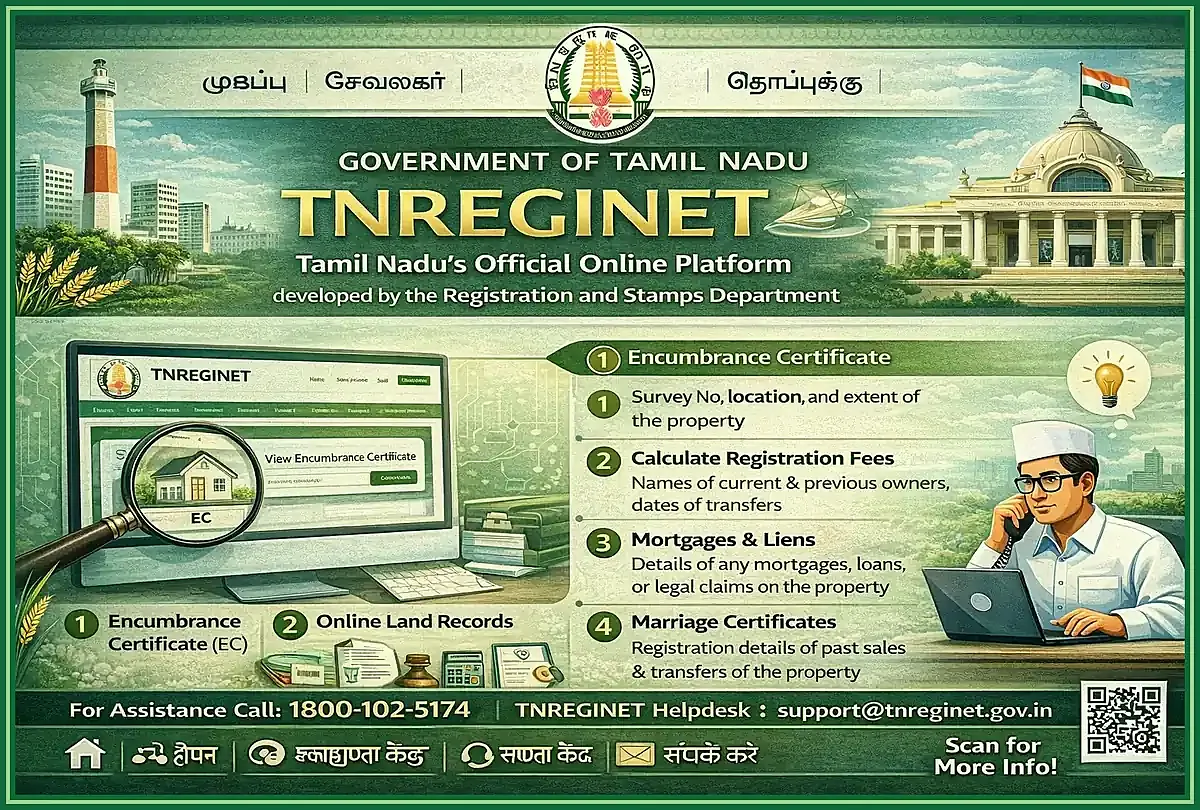
Once the result loads, check the identifiers first. The value of the result depends on whether the office, property details, and date range really match the property you meant to review.
What appears in the EC output
The EC output may show the document number, registration year, transaction type, parties involved, SRO details, and date-related information for the period searched.
If entries appear, compare them with the documents already in hand. A sale entry, mortgage entry, release entry, settlement entry, or another registered transaction may call for a deeper document check before a major property decision.
When reading EC output, check
- property identifiers match the property being reviewed
- SRO and village details are correct
- date range matches the period you intended to search
- document numbers and years look relevant
- transaction types need further review
- names or party details are not being confused with another property
Nil Encumbrance meaning and what it does not prove
Nil Encumbrance means no registered encumbrance was found for the details and dates you searched. It does not prove that the property is legally perfect, dispute-free, or automatically safe to buy.
What it can mean
No registered encumbrance was found for the searched property details and selected period.
What it does not prove
It does not prove full legal clearance, dispute-free ownership, or complete due diligence.
What to recheck
Review SRO, village, survey number, document number, and date range before relying on it.
A Nil result can appear because there really are no registered encumbrance entries for that period. It can also appear because the date range is too short, the SRO or village is wrong, the survey number is incomplete, or older records are not fully digitized.
Use Nil Encumbrance carefully
Treat Nil Encumbrance as a useful signal, not final legal clearance. For important purchases, loans, or ownership decisions, users should also review title documents, parent documents, revenue records where relevant, and certified records or professional advice when needed.
TNREGINET EC Download, Certified Copy, and Offline Follow-Up
Online EC view is useful for a fast check, but some cases still need a TNREGINET certified copy or office-level clarification. That matters when a bank, buyer, advocate, or government process needs formal proof instead of a quick screen result.
Viewing online versus applying for a certified copy
Online EC view helps with the first pass. You can spot entries, check whether the search details are working, and decide whether you need to go deeper.
A certified copy is different. It is the better route when proof must be submitted to a bank, buyer, legal advisor, or office. That can mean a separate application, fee, verification step, or Sub-Registrar Office follow-up.
Online EC view
Best for quick property-history checking, early review, and confirming search details.
Certified copy
Needed when a bank, authority, buyer, or legal process asks for formal proof.
Use certified copy or formal follow-up when
- a bank or authority asks for a formal document
- the online result needs formal proof
- the record needs document-level verification
- there is confusion about old or missing entries
When users may still need help from the Sub-Registrar Office
Sub-Registrar Office help becomes useful when the EC result does not match known documents, records appear missing, the SRO or village is still unclear, or older records do not show online. Office follow-up also matters when a certified document is required.
Before visiting or calling, note down the district, SRO, village, survey number, document number, date range, and the message shown on the portal. Those details make follow-up faster and cut down repeated searching.
Sub-Registrar Office help is most useful when
- EC result does not match the property documents
- no records appear despite known registered activity
- SRO jurisdiction is unclear
- old records may not be digitized
- certified copy or official clarification is required
For an important property decision, treat online EC view as the first layer and formal records or office follow-up as the second layer.
Common TNREGINET EC Problems and Fixes
Most EC problems come from detail mismatch, short date ranges, wrong SRO selection, older non-digitized records, or a temporary portal issue. Before treating the result as final, recheck the fields and run the search again.
No records found, wrong search details, and non-digitized records
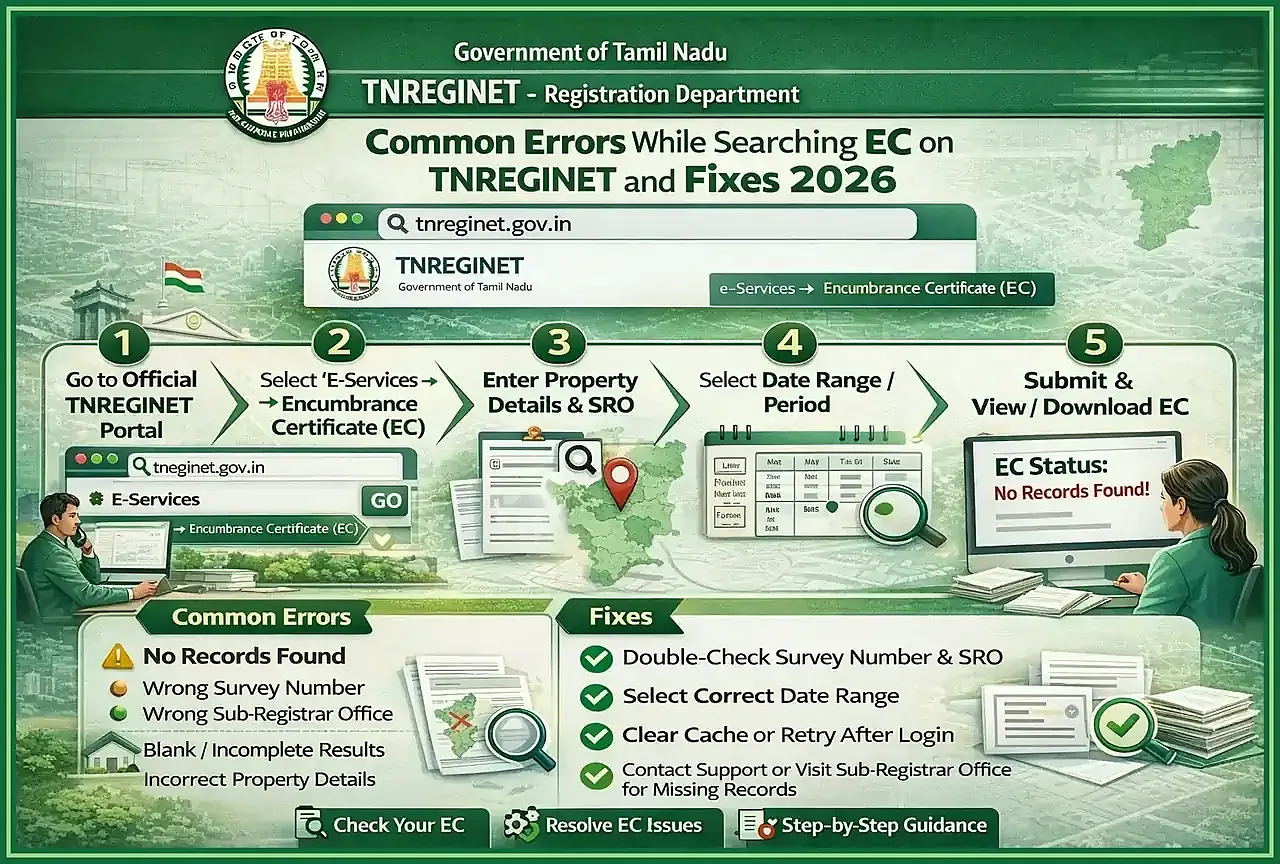
No records found is not automatic proof that the property has no registered activity. It may mean the search details are wrong, the date range is too short, the survey number or subdivision is incomplete, or the record is not available online for that period.
Wrong SRO selection is one of the most common reasons for a bad result. A property can fall under one specific Sub-Registrar Office, and choosing the wrong office can return nothing useful. Village and locality selection also matter, especially when names look alike.
Older records are not always easy to retrieve online. If the property has known older documents but the search does not show them, use certified-copy help or office follow-up.
No records found quick flow
- recheck survey number, subdivision, document number, and search type first
- expand the date range if older registered activity may matter
- verify the correct SRO and village before repeating the same search
- move to certified copy or Sub-Registrar Office follow-up if the record may be old or not fully digitized
Portal errors, loading issues, and search-type confusion
Portal errors can happen when the session expires, the page loads slowly, or the form is submitted with missing fields. If the EC screen stops working, open a fresh browser tab, check the internet connection, and avoid leaving the same form open for too long.
Search-type confusion is also common. Survey-wise and document-wise search are different routes. If you have survey details, use the survey-based option. If you have a registered document number, use the document-based option. The wrong choice can produce weak or empty results even when the property does have registered records.
When to expand the date range or verify SRO details
Expand the date range when
The result looks too limited, older transactions are expected, or a wider property history is needed.
Verify SRO details when
The result does not match documents, no records appear, or the village/locality selection is uncertain.
If both the date range and SRO details are correct but the issue continues, use the TNREGINET support guide for the next troubleshooting layer, then move to certified records or office follow-up if needed.
TNREGINET EC FAQ
Short answers to the most common EC questions
Yes, the online EC search can be used to check property entries through the portal. A certified copy or formal document request can involve a separate process or fee.
The right period depends on why you are checking the property. For purchase, loan, or other serious review, a longer range is safer because a short period can miss older registered transactions.
No. It only means no registered encumbrance was found for the details and period searched. Important decisions can still need document review, office clarification, or professional help.
Final Takeaway and Best Next Step
When to stay here and when to move to certified copy or support
Stay here when you need to choose the right EC search, fix field mistakes, or understand what the result is really saying. Move to certified-copy help when the result must be submitted formally, and move to office follow-up when the online record still does not match the known documents.
Choose the next step by result
- recheck fields if the result looks wrong or empty
- expand the date range if older records may matter
- verify SRO and village details if the search does not match the property
- use certified copy support when formal proof is needed
- contact or visit the Sub-Registrar Office when online search cannot resolve the issue
EC view is a strong first check for property record work. Read it in context, then step up to certified records or deeper review when the decision carries real money or legal risk.